


firmware
firmware 8.7 - volume fix, memory problem fix
original firmware - initial firmware
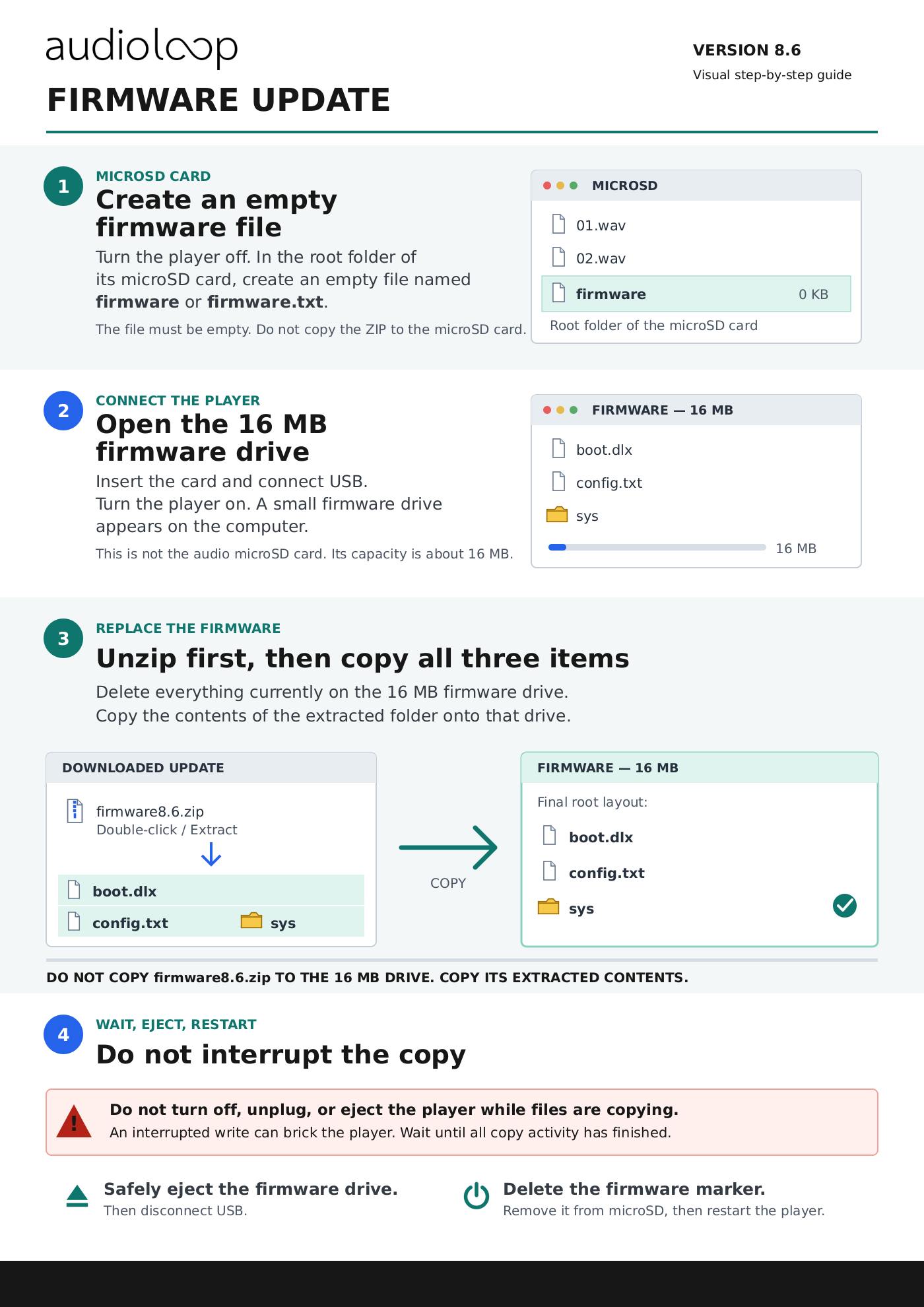
AUDIOLOOP FIRMWARE UPDATE
=========================
Before you begin
----------------
- Use only firmware supplied for your AUDIOLOOP player model.
- Fully unzip the firmware package on your computer before copying anything.
Do not copy the ZIP file itself to the player.
- While firmware files are being deleted or copied, do not turn the player
off, disconnect the USB cable, or eject the drive. Interrupting a write may
leave the player unable to start.
Instructions
------------
1. Insert the microSD card into the player while it is turned off. Connect the
player to the computer with a USB cable and turn it on. Wait for the microSD
card to appear as a normal external drive.
2. Create empty file with name "firmware" or "firmware.txt"to the root of the
microSD card.
3. Wait for the copy to finish and safely eject the microSD drive. Keep the
USB cable connected. The player will leave SD drive mode and enter firmware
update mode.
4. Wait for a new firmware drive of approximately 16 MB to appear on the
computer. This may take several seconds.
5. Open the 16MB firmware drive. Do not format it. Make sure you are working
with this small firmware drive and not the microSD card or another drive
connected to your computer.
6. Delete all existing files and folders from the 16MB firmware drive. Then
copy all files and folders from the unzipped new firmware package onto
that drive.
Do not copy the parent folder or the ZIP file. When finished, the root of
the 16MB drive should look similar to the original firmware: two files and
one folder containing additional firmware files.
7. Wait until the computer has completely finished copying. During this step,
do not turn the player off, disconnect it, or eject the drive. Only after
the copy has finished, safely eject the firmware drive:
- Windows: use Safely Remove Hardware / Eject.
- macOS: click the Eject icon next to the drive in Finder.
Wait until the firmware drive has completely disappeared from the computer.
Only then turn the player off and disconnect the USB cable.
8. Connect the player to the computer again and turn it on. The microSD card
will appear first. Delete the firmware file from the card, wait for the
operation to finish, and safely eject the microSD drive.
9. Turn the player off and disconnect it. The new firmware will start the next
time the player is turned on.
If the 16MB drive does not appear
---------------------------------
- Check that the file is named exactly firmware, is empty, and is located
directly in the root of the microSD card.
- If you safely ejected the SD drive but the 16MB drive did not appear, turn
the player off, reconnect it to the computer, and safely eject the SD drive
once again.
- If the computer offers to format the drive, cancel the format operation.
- If the update was interrupted or the player does not start afterwards, do
not continue deleting or formatting drives. Contact support.